
Overview #
This guide walks you through the exact steps to initiate a full page analysis in SEO Page Auditor.
Step 1: Enter Your URL #
The application supports both single-URL and batch URL analysis.
To start a single analysis, enter a URL in the “Enter a URL and click Analyze” field.
To start a batch analysis, use one of the following options:
- In the top menu, select Tabs → Create Tabs from List, then paste up to 10 URLs from the clipboard into the dialog window.
- Start an analysis from a list of URLs previously saved in a TXT file. To do this, use File → Load URL List. The list can contain up to 10 URLs.
Step 2: View the Analysis Progress Window #
The Analysis Progress Window shows the current rendering and analysis progress in real time. The algorithm waits for the DOM tree to fully load and for all scripts to finish executing before finalizing the analysis.
Step 3: Select the Audit Scope #
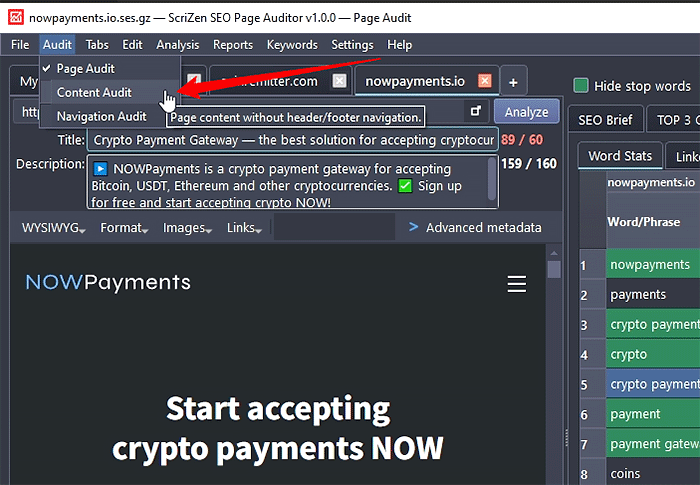
Choose the appropriate scope for your analysis (Page Audit, Content Audit, or Navigation Audit). If you are focusing on the article’s text, ensure you select “Content Audit”.
Step 4: Review Results #
Once complete, navigate through the tabs (WYSIWYG, HTML, TEXT, N-Grams Stats, Word Stats) to review your metrics.
Step 5: Manual Keyword Configuration #
To manually fine-tune your analysis, begin by navigating to the N-Grams tab. You can add or remove specific phrases from your target keyword list by double-clicking a row or using the right-click context menu. Next, open the Word Stats tab to adjust single-word keywords using the exact same method, depending on your optimization goals. Any words or phrases successfully added to your active keyword list will be highlighted in green within the data tables.
Note: In the Word Stats and N-Gram Stats tables, you can quickly add or remove any word from the keyword list by double-clicking it. You can also do this from the right-click context menu.
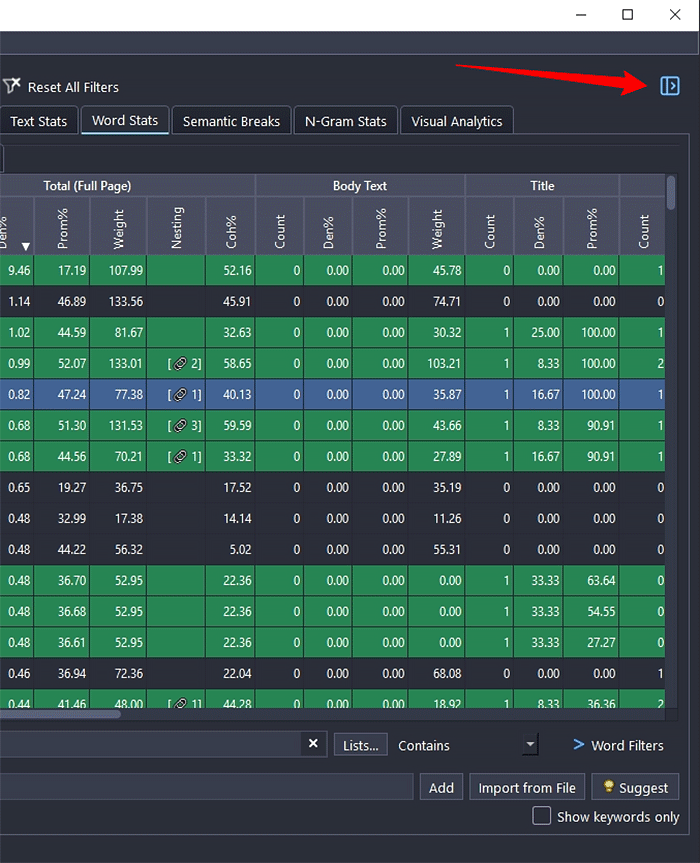
To make the Word Stats table easier to work with, you can expand it to fill the full width of the application window by clicking the Expand Statistic Pane button in the upper-right corner of the app.
Step 6. Review the SEO Brief #
Go to the SEO Brief tab, review the generated brief, and refine it to match your goals by editing the content in the editor window in either HTML or Text view.
Once finalized, the SEO Brief becomes a practical handoff document that can be passed to your copywriter, designer, developer, content manager, editor, marketing team, or website owner to support the creation of a page built for stronger organic search performance.
Alternatively, if you are a copywriter, blogger, content creator, content manager, editor, marketer, publisher, website owner, or another content-focused user with basic SEO knowledge, you can skip all steps after Step 3, go directly to the SEO Brief, export it, and use it as a clear execution framework for preparing an optimized page draft with stronger relevance, structure, and ranking potential.


